Table of Contents
The reset password feature on Ledgerely allows users to securely recover access to their accounts by verifying their identity via email OTP authentication. This document outlines the step-by-step process involved in resetting a password, ensuring security and user convenience.
Step-by-Step Process #
Initiating Password Reset #
- Users navigate to the Sign In page and click on “Reset Password”.
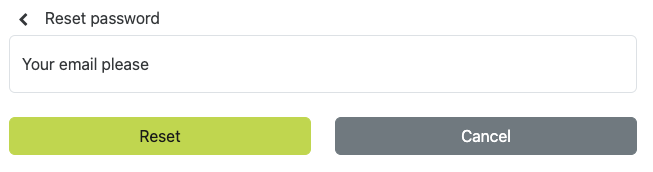
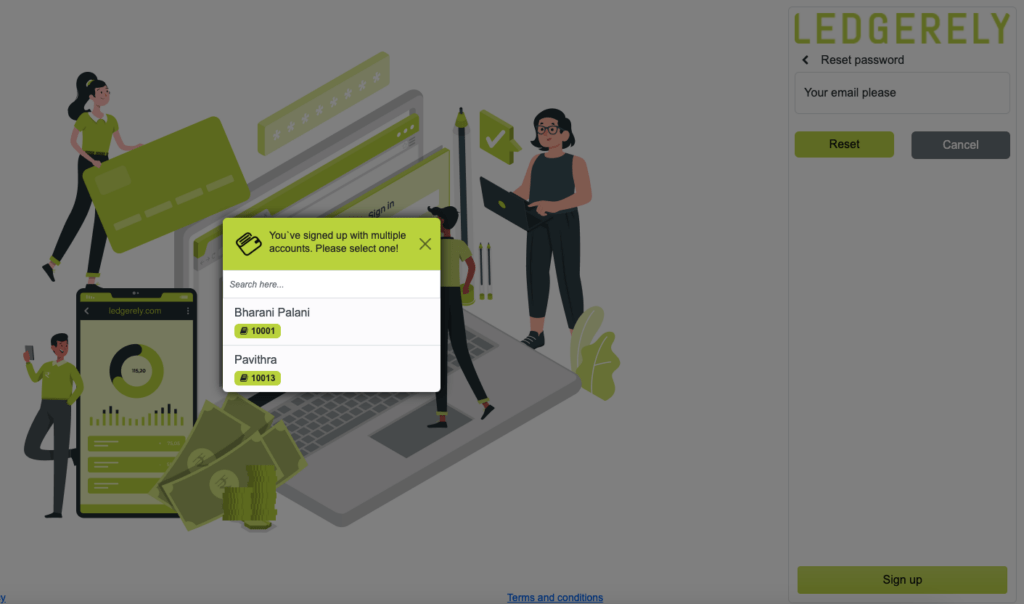
- A form appears prompting the user to enter their registered email address.
- The email input field includes validation to ensure correct formatting
- The Reset Password button remains disabled until a valid email is entered.
Identifying Associated Accounts #
- Once the user submits a valid email address, the system searches for accounts associated with the provided email.
- If multiple accounts are found, a pop-up appears allowing the user to select the relevant account.
- If only one account is found, it is selected by default.
OTP Verification #
- After selecting the account, an OTP (One-Time Password) is sent to the registered email address.
- The user is required to enter the OTP within 300 seconds (5 minutes).
- The OTP field includes validation to ensure correct input.
Setting a New Password #
- Once the OTP is successfully verified, the system generates a new password and sends it to the user’s email.
- The user can use this password to log in.
Updating Password After Login #
- After logging in, users are encouraged to change their password via Account Settings.
- A secure password update process ensures enhanced account security.