Table of Contents
View Your Subscription Transactions | Subscription History #
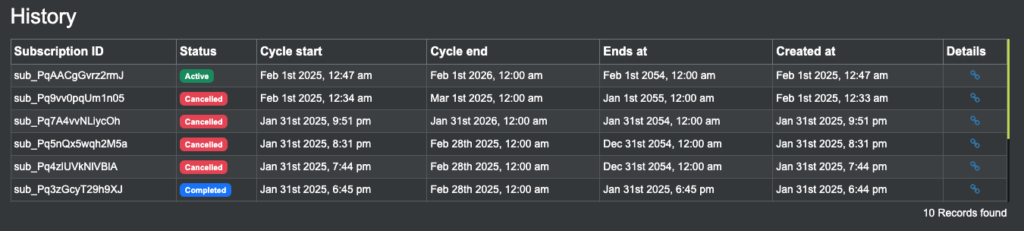
The Subscription History table at the bottom of the Billing Page helps users track their past transactions. It automatically loads data from Razorpay API subscriptions as you scroll.
How It Works
- The table displays subscription details in real time.
- Lazy loading is enabled (10 transactions load at a time).
- Once there are no more records, loading stops.
- A loader icon appears when fetching new data.
- The total records count is displayed at the bottom right.
What You’ll See in the Table #
| Field Name | What It Means |
|---|---|
| Subscription ID | Unique ID assigned to your subscription. |
| Cycle Start | Date when your billing cycle started. |
| Cycle End | Date when your billing cycle ended. |
| Expiry | The expiry date of your subscription. |
| Paid At | Date & time when payment was made. |
| Created At | The date your subscription was created. |
| Details Link | A link to view full transaction details. |
How to Use the Subscription History Table #
- Scroll down to load more transactions.
- No pagination required – transactions appear as you scroll.
- If no data is found, a “No records available” message appears.
- A loading icon will show when fetching more data.
Note: The system automatically stops fetching data when no more transactions are available.