Table of Contents
Subscription Cancellation Process – Cancel Subscription #
Ledgerely provides Super Admin users with the ability to cancel subscription at any time. This feature allows users to pause their subscription during non-usage and resume later by creating a new subscription.
Note:
- When a new subscription is created, any existing subscription will be automatically canceled.
- All customer transactions are linked to a subscription ID, ensuring accurate tracking.

Subscription Cancellation Flow | Cancel Subscription #
Subscription Details in Dialog #
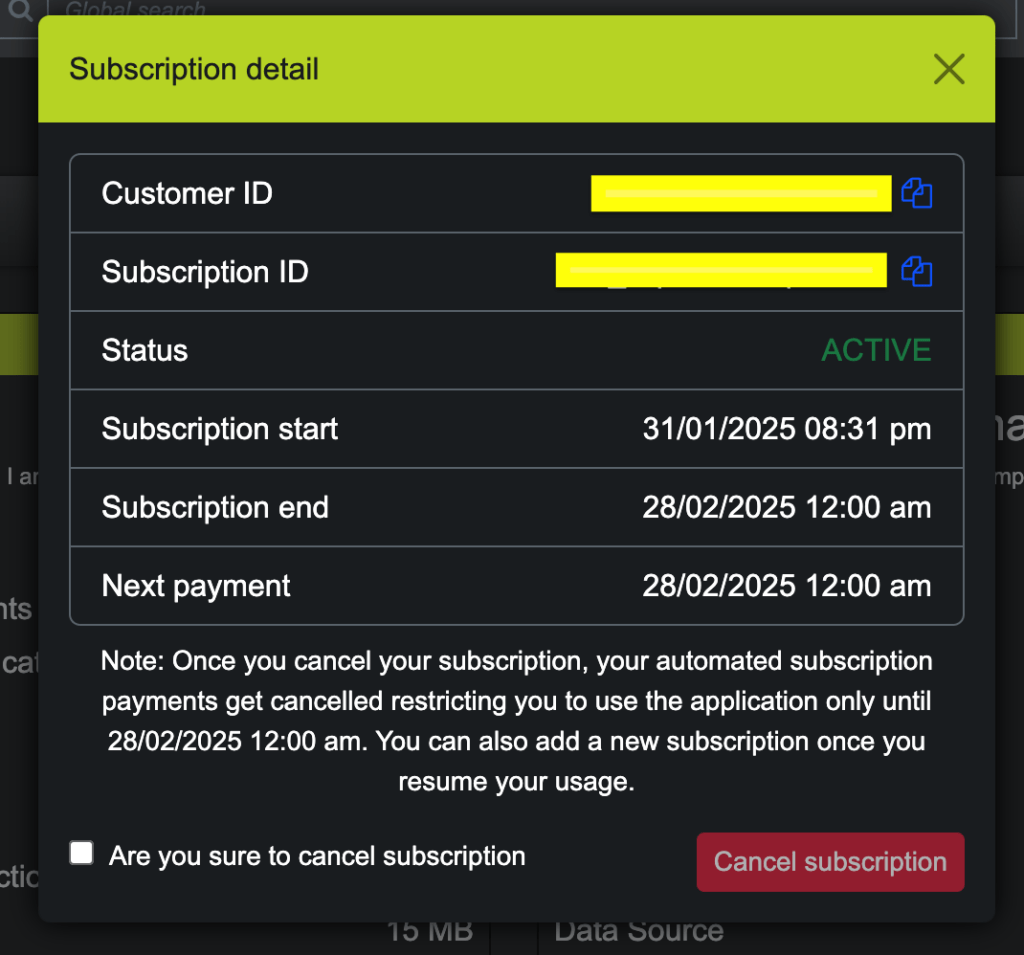
When canceling a subscription, a dialog box will appear displaying the following details:
- Customer ID (e.g., cust_abcd123456)
- Subscription ID (e.g., sub_abcd123456)
- Subscription Status (Active/Inactive)
- Subscription Start Date
- Subscription End Date
- Next Payment Date
Cancellation Process #
- Super Admin navigates to the Subscription Settings page.
- Click the Cancel Subscription button.
- A confirmation dialog appears with the subscription details.
- The user confirms cancellation.
- Subscription status updates to Cancelled in the database.
- The user will need to create a new subscription to resume active billing.
Subscription & Transaction Tracking #
- Every customer transaction is linked to:
- Customer ID (cust_xxxxx)
- Subscription ID (sub_xxxxx)
- Once a subscription is canceled, new transactions will only be processed when a new subscription is created.
Important Rules & Restrictions #
- Super Admin Users Only can cancel subscriptions.
- Existing subscriptions will be canceled automatically if a user creates a new subscription.
- Cancellation does not delete user data—the user can re-subscribe anytime.
Next Steps #
- Implement UI confirmation modal before cancellation.
- Ensure backend updates the subscription status in Razorpay and the Ledgerely database.
- Display cancellation history for transparency.